The AI image generator built for YouTube videos
TubeGen makes an image for every scene in your video. It listens to your voiceover, breaks it into scenes, and creates a picture for each one, so the whole video gets its images in one go. You don't place them one by one. Every image uses the same art style, and you choose how much detail you want.
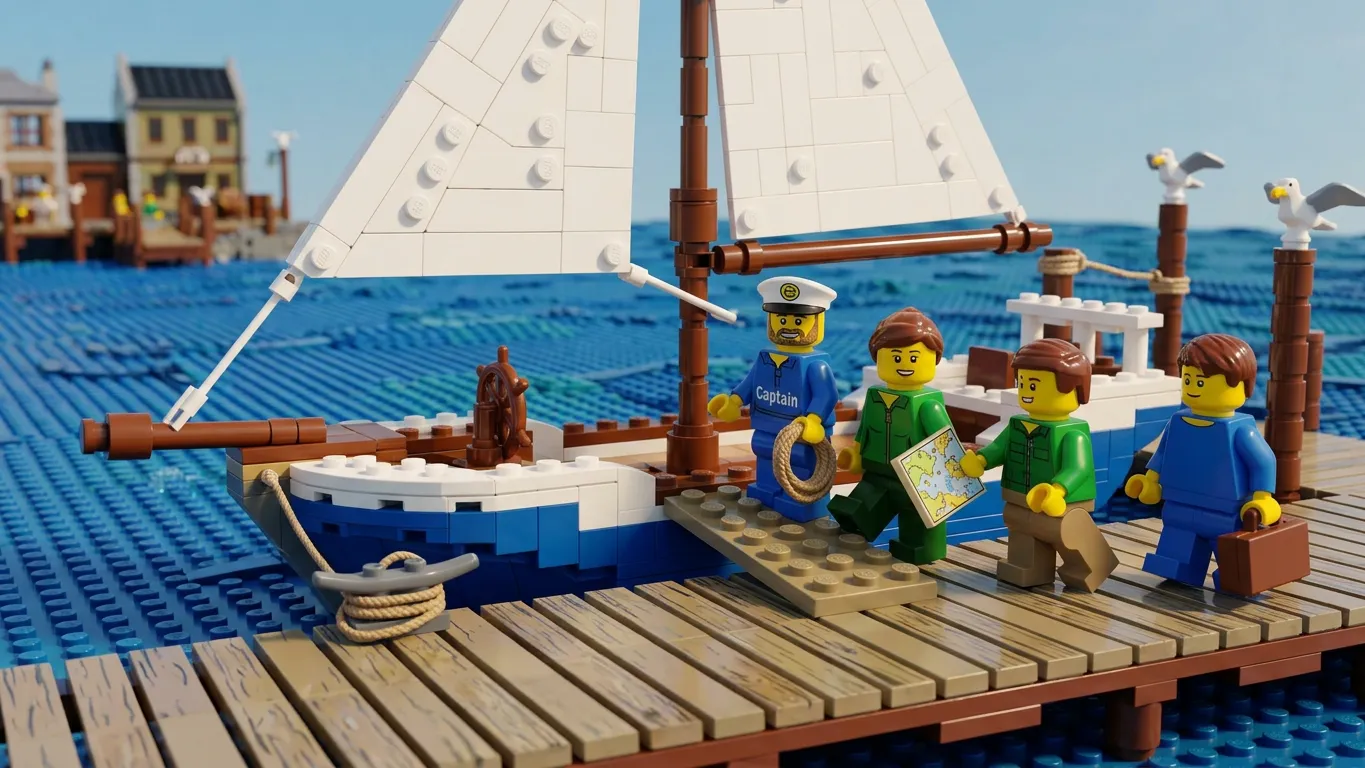
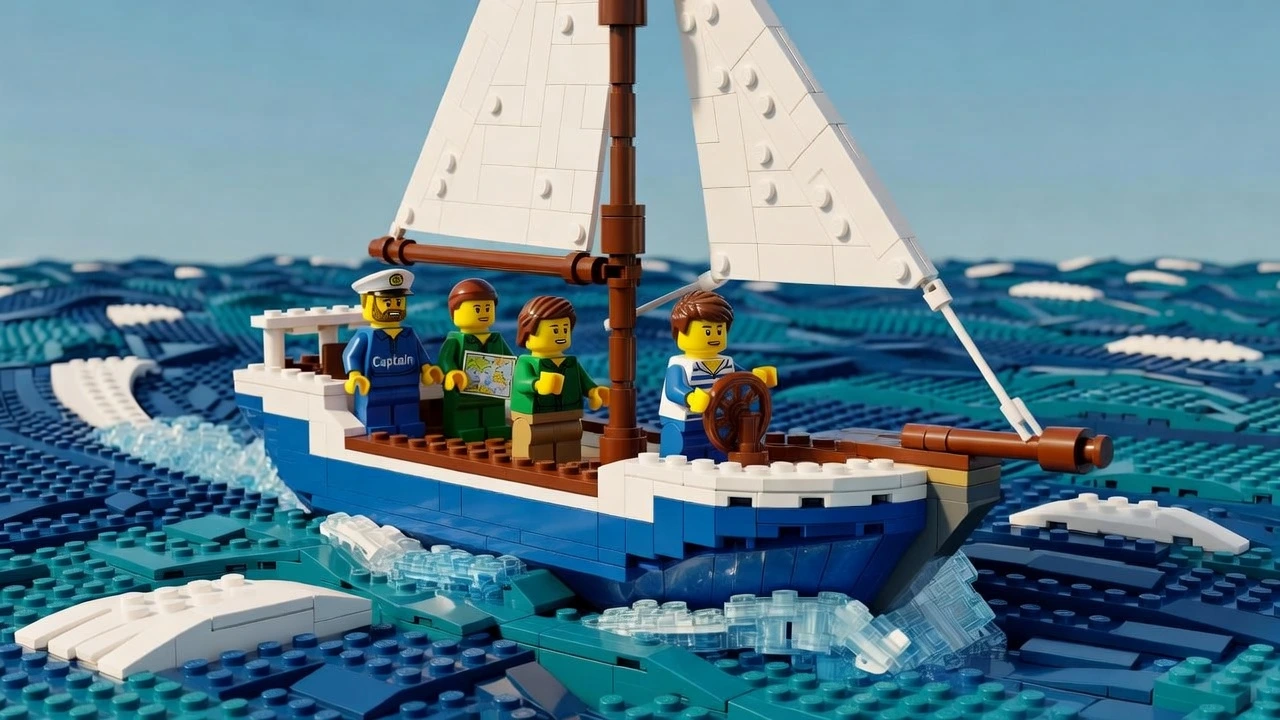
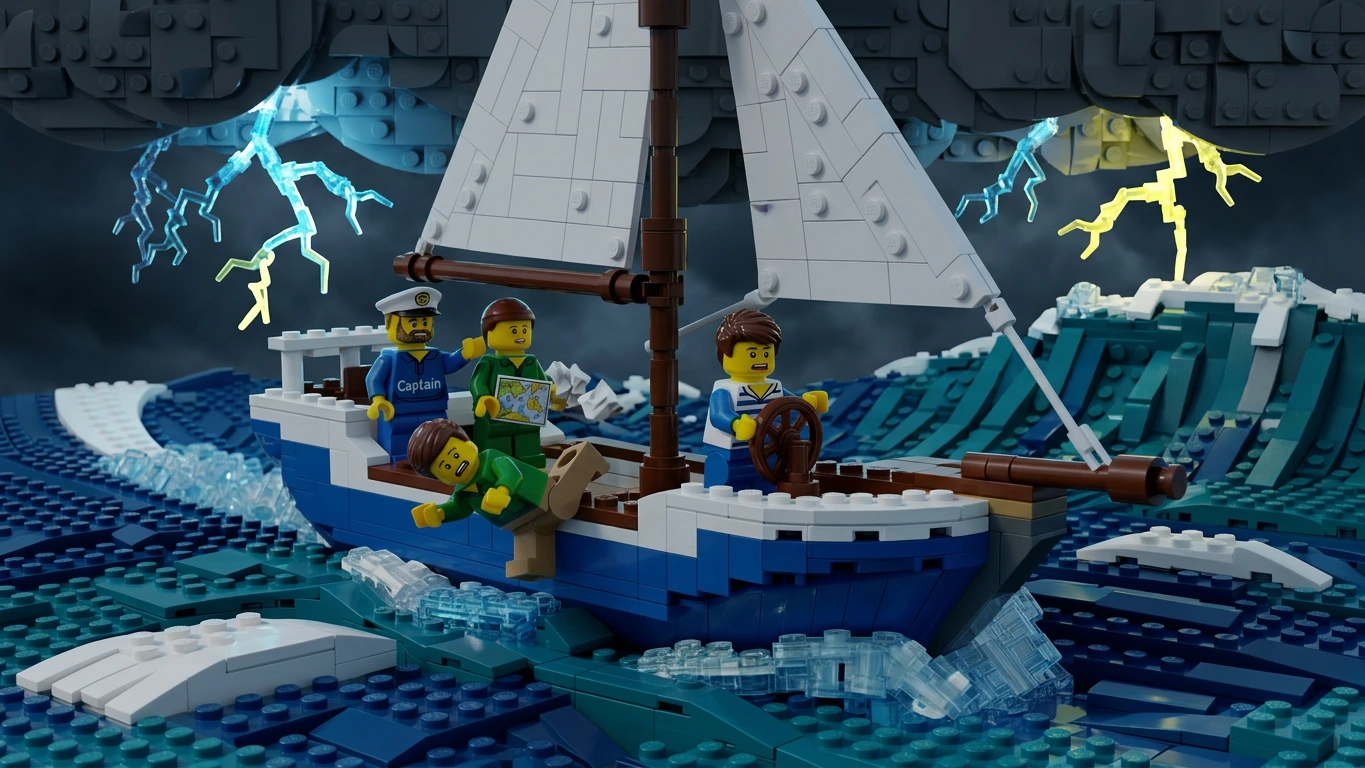
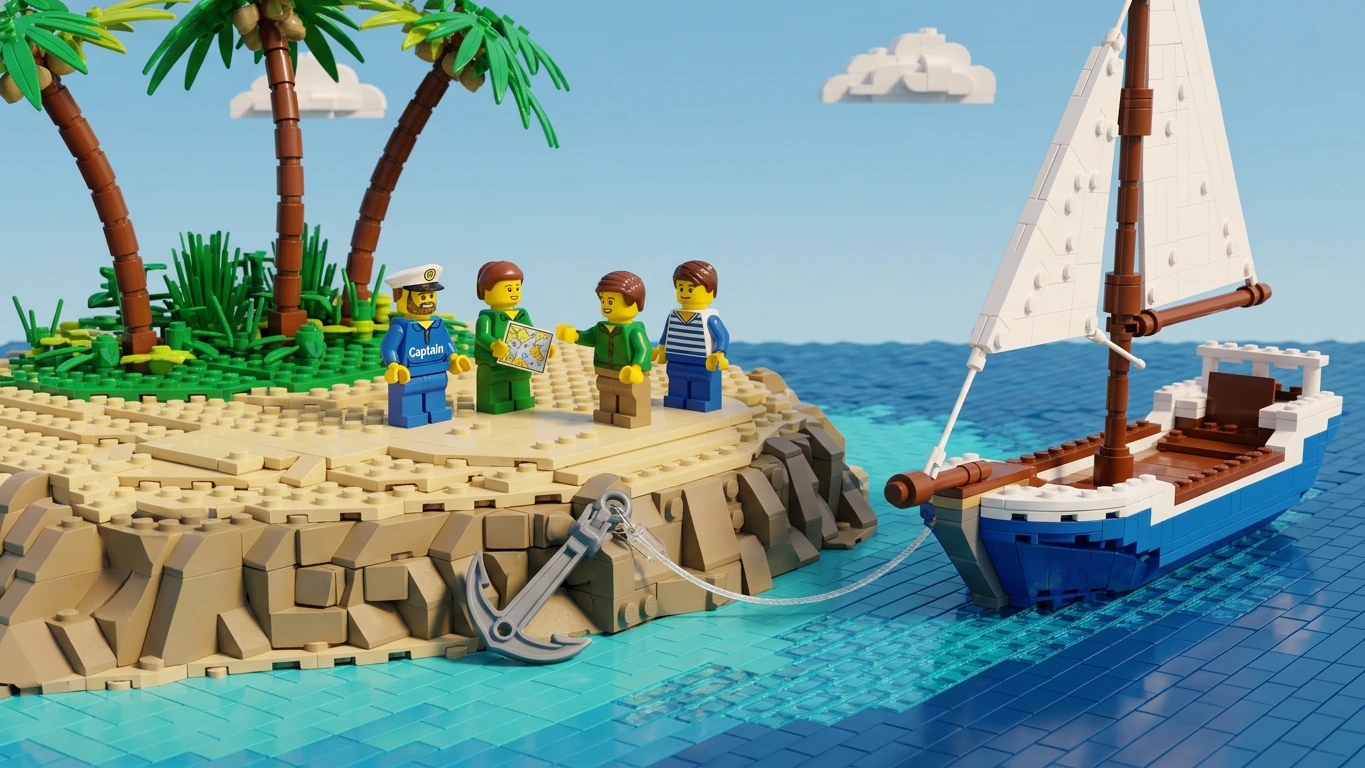
Image generation and scene timing, together
Most tools make you generate images, then drag them onto a timeline by hand. Here it's a single pass. The generator fills every scene, and the scene pass times them to your voiceover.
Image generation
Creates an image for every scene in one pass. Aspect ratio, quality, image count, and style are all set before you generate, so the whole set matches the look of your channel.
Scene timing
Reads your voiceover, splits it into scenes, and pins each image to the moment it's spoken, with no dragging images onto a timeline by hand.
A “scene” is just a moment in your narration. The scene pass finds them; the generator fills them, all in one run.
Set the format once. Generate the whole video.
Aspect ratio, quality, count, and style are chosen up front, so the output matches the format and look of your channel, every scene.
30 images
Your narration is the timeline
The scene pass reads the voiceover, splits it into scenes, and times each image to the moment it appears, so visuals line up with what's being said, instead of being placed by hand.
Your style and cast carry over
Every image uses the art style you picked for the video. You can also drop a saved character into your scenes. You set both in their own tools, and they carry over here, so your images stay the same in look and cast across the whole video.
Art Styles
Pick a preset or build your own style, even from a YouTube channel. Your pick is used on every scene here.
Set up Art Styles →Consistent Character
Save a character once, then drop it into your scenes. It looks the same across the whole video.
Set up Consistent Character →You set your style and your cast once. They carry over here and stay the same across every scene.
Pay for detail only where it matters
You pick the quality, and the quality sets the credit cost. Lower quality costs fewer credits. It's great for drafts or quick scenes. Higher quality costs more credits and adds detail. Use it for finals or scenes you hold on screen. Every image has a price in credits, so you stay in control of what you spend.
Best for testing a style, rough cuts, and scenes that flash by quickly.
A dependable middle ground for most scenes in a typical video.
Maximum detail for finals, thumbnails, and anything held on screen.
Add motion instead of sitting static
Generated images can be animated to bring scenes to life. How many minutes of animation you get per video depends on your plan.
The first layer of your visuals
On its own
Bring your own voiceover or generate one in TubeGen, produce the images, and download them to use anywhere.
Inside TubeGen
Image generation is the first layer of your visuals. Its images feed your animation, your overlays, and the editor, so the rest of the visual tools build on these scenes.
Questions, answered
What is the best AI image generator for YouTube videos?
TubeGen makes a full set of images timed to your narration, in one style, with quality you control. It's built for video, not single images, and it's the base the rest of TubeGen's visual tools build on.
Can I control the look of the images?
Yes. You set the art style in the Art Styles tool, and it's used on every scene. You can also place a saved character into the images with Consistent Character.
Do higher-quality images cost more credits?
Yes. You can change the quality, and the cost moves with it. Budget images cost fewer credits. High-detail images cost more. So you balance spend against quality on each video.
How are the images timed to the video?
TubeGen uses your voiceover to split the video into scenes. It times each image to the moment it comes up, so the visuals match the narration on their own.
Explore the platform